How to change the sharing settings for a site in SharePoint
SharePoint sites can be shared with people inside and outside your organization. The sharing settings for a site control who can view and edit the content on the site.
Who can change the sharing settings?
Only Global Administrators and SharePoint Administrators can change the sharing settings for a site. Site owners cannot change these settings.
Steps to change the sharing settings for a site
- Go to the Active sites page in the SharePoint admin center.
- In the left column, select the site that you want to change the sharing settings for.
- On the Settings tab, select More sharing settings.
- In the External sharing section, select the desired sharing option.
The following sharing options are available:
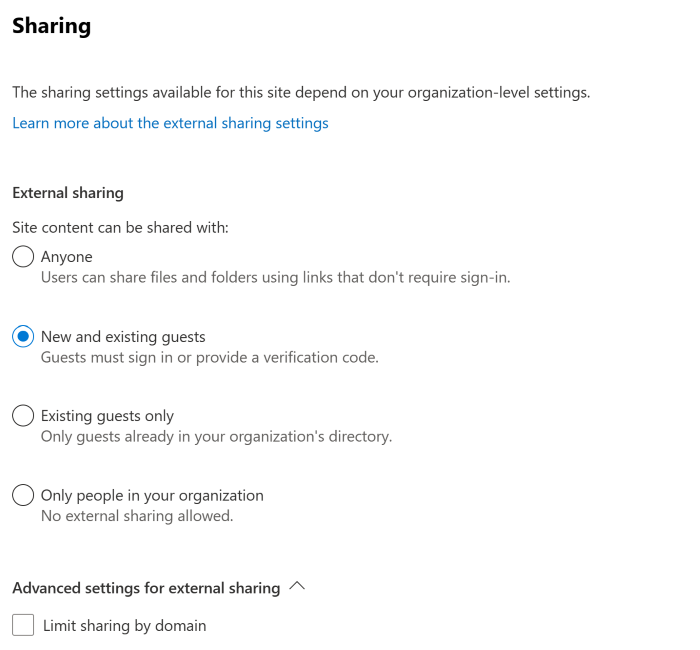
- Anyone with the link can view: This option allows anyone with the link to view the site, regardless of whether they are a member of your organization.
- People in your organization can view: This option only allows people in your organization to view the site.
- No one can view: This option prevents anyone from viewing the site, even people in your organization.
-
If you want to limit the sharing of the site by domain, select the Limit sharing by domain check box.
-
In the Allowed domains box, enter the domains that you want to allow to view the site.
-
In the Blocked domains box, enter the domains that you want to block from viewing the site.
-
If you want to change the guest access expiration setting for the site, clear the Same as organization-level setting check box.
-
In the Guest access expiration box, enter the number of days that you want guests to have access to the site.
-
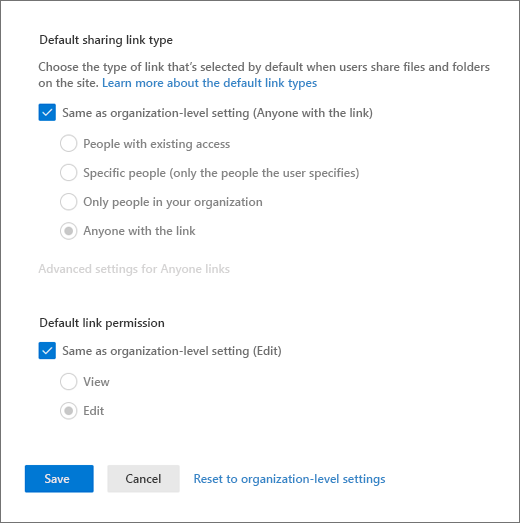
If you want to change the default sharing link type or permissions for the site, clear the Same as organization-level setting check boxes.
-
In the Default sharing link type box, select the type of sharing link that you want to use by default.
-
In the Default sharing permissions box, select the permissions that you want to grant to people who you share the site with by default.
-
Click Save.
By following these steps, you can change the sharing settings for a site in SharePoint.
Here are some things to keep in mind when changing the sharing settings for a site:
- Only change the sharing settings for sites that you need to share with people outside of your organization.
- Be careful about who you share sites with. Only share sites with people you trust.
- If you change the sharing settings for a site, you may need to update the links that you have shared with people.


